)
Using your client portal
Your portal is the home base for your project. It's where you'll follow progress in real time, review and approve documents, make selections, see photos from the jobsite, and talk to our team — all in one place, on any device.
You don't need to download anything to use it. Any link we email you opens your portal directly. Your portal is included as part of working with us — there's no cost or subscription to you.
Create a password
Most of the time you won't need one — just click the link in any email from us and your portal opens right up. You'll want to set a password if you plan to add the portal to your phone as an app, or if you'll be making payments through it.
If you're not signed in
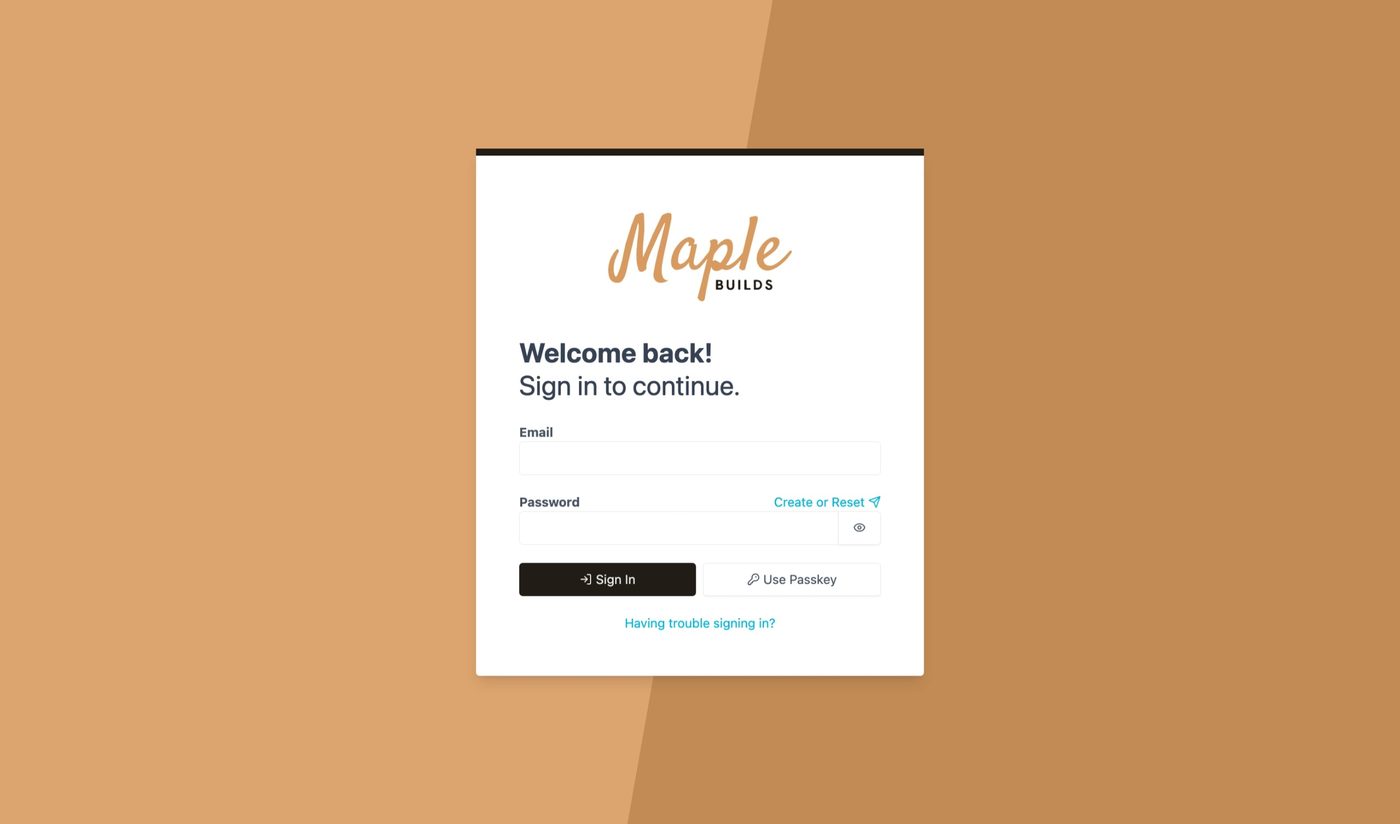
- Go to your Maple Builds portal sign-in page.
- Enter the email address we used to invite you.
- Click Create or Reset above the password field. We'll email you a link.
- Choose your new password, then click Set Password.
If you're already signed in
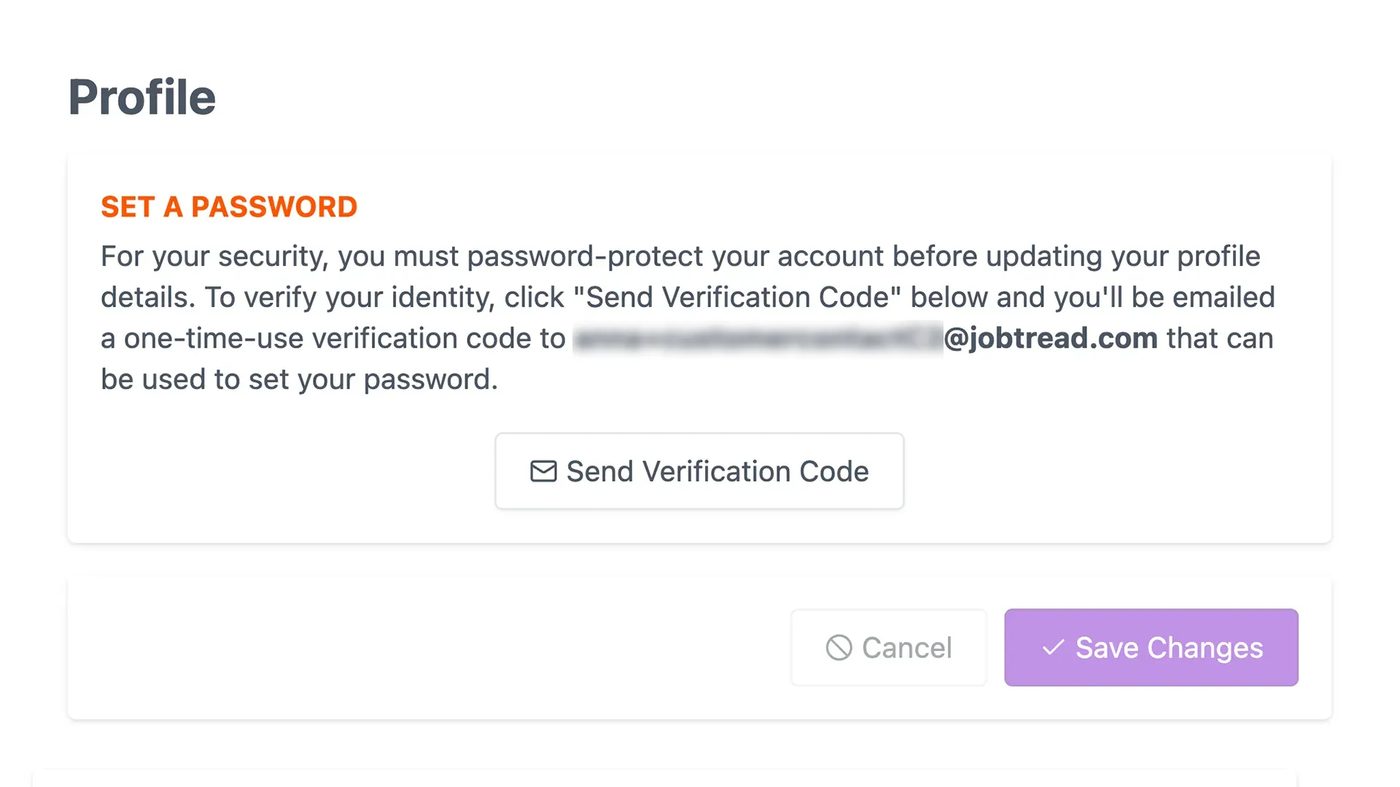
- Click your initials in the top right corner to open your Profile. (With more than one project, you can reach your profile from the main navigation.)
- Click Send Verification Code — we'll email you a one-time code.
- Enter that code in the Code field on your Profile.
- Enter your new password in the Password field.
- Click Save Changes at the bottom.
Add the portal to your phone
Your portal works beautifully on a phone or tablet. We recommend saving it to your home screen so it opens like an app — one tap, no hunting for a link.
iPhone & iPad
- Open your portal in Safari or Chrome.
- Tap the Share icon — a square with an arrow pointing up. Depending on your iOS version, it's either visible along the bottom or top of the screen, or tucked inside the ••• menu.
- Scroll down and choose Add to Home Screen.
- Rename it if you'd like, then tap Add.
- Open your new portal icon from the home screen.
- Sign in, and you're in.
Android
- Open your portal in Chrome.
- Tap the More menu (⋮) in the top right corner.
- Choose Install App.
- Tap Add to Home Screen.
- Open your new portal icon from the home screen.
- Sign in, and you're in.
Turn on notifications
You'll get updates in the portal and by email, and you can also receive them as push notifications on your phone.
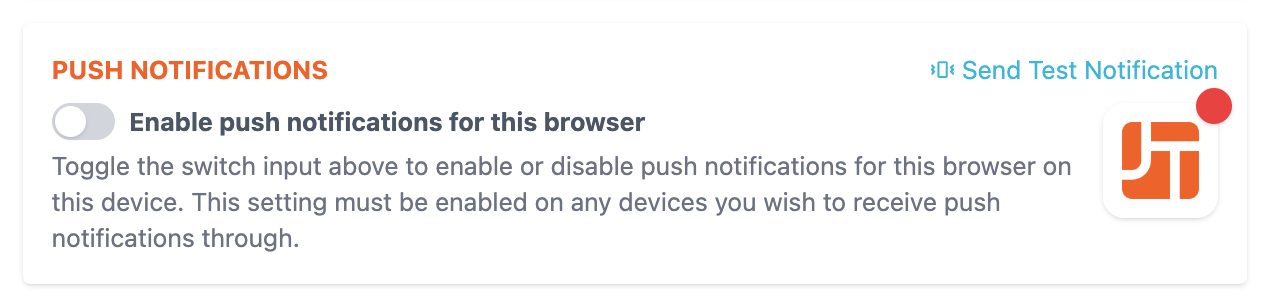
- In your portal, click your initials in the top right to open your Profile. (With more than one project, reach it from the main navigation.)
- Find the Push Notifications section.
- Switch on the toggle so it turns green, then click Send Test Notification to make sure it's working.
Push notifications not coming through?
- Make sure you've added the portal to your device's home screen.
- Turn on push notifications from your Profile within the app.
- Check that your device's software is up to date.
- Still stuck? Remove the app from your home screen and add it again.
Send us a message
Questions, ideas, or a photo of something you spotted? Message us right from your project dashboard — it lands in our feed and notifies the team, so nothing gets lost in a text thread.
- Open your project in the portal and click the Dashboard tab.
- Find the Message tool at the top of the Activity Feed.
- Type your message in the box.
- Type @ to tag a specific person on your project's contact list.
- Attach photos or files with the Upload button.
- Click Post.
We'll be notified right away, and any reply comes back in the same thread — so the whole conversation stays in one place.